Hosting personal applications like Actual Budget doesn’t have to be expensive or expose your private data to the public internet. In this post, I will show you how to host Actual Budget—or almost any other personal app—securely on Fly.io. While Fly.io no longer offers a free tier, this setup will cost you less than $2/month (most of the times you’ll get a discount for bills less than $5 though). We will keep the application completely off the public internet, and set up an automatic wake-up mechanism to minimize costs when you aren’t actively using the app.
The Architecture: Secure and Private
Before we dive into the steps, it’s important to understand the Fly.io concepts we are using to keep our deployment secure and cheap:
- Fly Apps: The basic unit of deployment. We will create an app that runs our Docker containers on Fly Machines. To save costs, our machines will automatically stop when idle and wake up when traffic arrives.
- 6PN (Private Networking): Fly.io provides a private IPv6 network for your organization. Instead of exposing our app to the public internet, we will assign it a private IP. You will connect to this network using WireGuard, ensuring only authorized devices can access your app. This is pretty interesting stuff where you’ll be connecting to a VPN (WireGuard) to access your app.
- Flycast: Flycast provides private load balancing & scaling. By assigning a Flycast address (
http://<app-name>.flycast), we can route traffic within our 6PN network through Fly’s proxy. This is crucial because Fly’s proxy handles waking up our sleeping machines when a request comes in.
In this setup, your app sleeps until you connect to your private WireGuard network and access the Flycast URL. The proxy wakes the machine, you do your budgeting, and the machine goes back to sleep after a period of inactivity.
Step 1: Prerequisites
- Create a Fly.io account (you can sign in with GitHub) and add your payment details. A card is required to use their services, but as mentioned, the cost will be very minimal (under $2/month) and most of the times you’ll get a discount for bills less than $5.
- Install the
flyctlCLI by following the official instructions.
Step 2: Initializing the App
Start by creating a new directory for your project and opening it in your terminal.
mkdir fly-io-actual-budget
cd fly-io-actual-budget
Run the following command to initialize your app without deploying it yet:
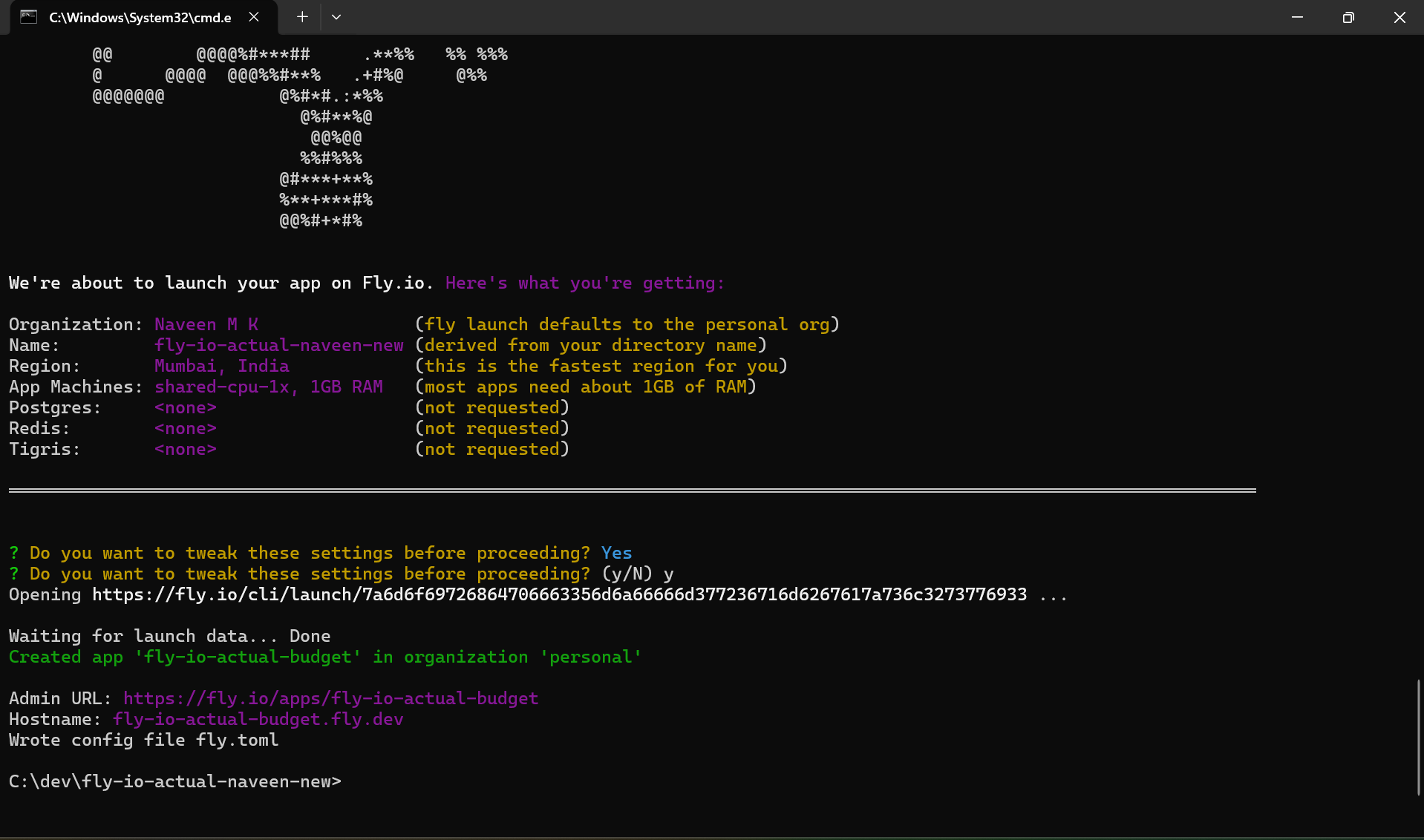
fly launch --no-deployWhen asked ? Do you want to tweak these settings before proceeding? (y/N), select y. Your browser will open a configuration screen:
- App Name: Give it a memorable name (e.g.,
fly-io-actual-budget). Note this down. - Region: Select a region close to you. Note that the
ewr(Secaucus, NJ) region is currently the cheapest for Fly Machines. - Internal Port: Leave this blank for now.
- CPU & Memory: Select
shared-cpu-1xand256MBRAM. This is generally sufficient for a single-user Actual Budget instance. - Other Options: Disable features like databases or Redis since we don’t need them for this setup.
Your CLI output should look similar to this configuration:
Save the configuration. You should now have a fly.toml file in your directory.
Step 3: Docker and Proxy Setup
Actual Budget takes a few seconds to boot up. If you connect directly, your request might time out before the Fly machine fully wakes up. To solve this, I run a lightweight Nginx proxy alongside the app. This proxy serves a simple HTML page that pings the machine’s health endpoint to wake it up. Once the machine is ready, you can safely open Actual Budget.
I use this round-about approach for another critical reason: Fly’s proxy does not support HTTPS over the 6PN private network. Because Actual Budget strictly requires HTTPS to function, you cannot access it through the standard Fly proxy. Instead, you must connect directly to the node using its .internal domain.
To summarize the architecture:
- The Wake-up Page: Nginx hosts an HTML page accessible via the Flycast URL. This page pings the server to keep it awake.
- The App: Actual Budget runs on a separate port and is accessed directly via the
.internaldomain with HTTPS.
First, create a Dockerfile:
FROM actualbudget/actual-server:latest-alpine

WORKDIR /app

RUN apk add --no-cache nginx

COPY redirect-app /app/static/redirect-app
COPY nginx.conf /etc/nginx/nginx.conf
COPY start.sh /start.sh
RUN chmod +x /start.sh

ENTRYPOINT ["/sbin/tini","-g",  "--"]
EXPOSE 80 443 5006
CMD ["/start.sh"]
Create a start.sh script to run both Nginx and Actual Budget:
#!/bin/sh
set -e

nginx -g 'daemon off;' -c /etc/nginx/nginx.conf &
node /app/app.js &

# Exit when either process exits (fly.io will restart the VM)
wait -n
Create the nginx.conf file to serve our redirect page on port 8002:
events {}

http {
    include /etc/nginx/mime.types;
    default_type application/octet-stream;

    access_log /dev/stdout;
    error_log /dev/stderr notice;

    server {
        listen 8002;
        root /app/static/redirect-app;

        location /health {
            return 200 "ok";
            add_header Content-Type text/plain;
        }

        location / {
            try_files $uri /index.html;
        }
    }
}
Next, create a folder named redirect-app and add an index.html file inside it. This page uses some basic CSS and JavaScript to ping the server, ensuring the machine wakes up, and then provides a button to open the app. Make sure to replace fly-io-actual-budget with your actual app name in the constants at the top of the script (hightlighted below).
<!DOCTYPE html>
<html lang="en">
    <head>
        <meta charset="UTF-8" />
        <meta name="viewport" content="width=device-width, initial-scale=1.0" />
        <title>Open Actual Budget</title>
        <link
            rel="stylesheet"
            href="https://unpkg.com/@picocss/pico@2/css/pico.min.css"
        />
        <style>
            :root {
                --page-gradient-start: #edf7ff;
                --page-gradient-end: #fff7ed;
            }

            body {
                min-height: 100vh;
                margin: 0;
                display: grid;
                place-items: center;
                background: linear-gradient(
                    140deg,
                    var(--page-gradient-start),
                    var(--page-gradient-end)
                );
            }

            main {
                width: min(90vw, 520px);
            }

            article {
                text-align: center;
                border-radius: 18px;
                box-shadow: 0 16px 45px rgba(16, 24, 40, 0.12);
            }

            h2 {
                margin-top: 1.75rem;
                margin-bottom: 0.75rem;
                font-size: 1rem;
            }

            p {
                margin-bottom: 1.25rem;
            }

            button {
                width: 100%;
            }

            .settings {
                text-align: left;
                margin-top: 1rem;
            }

            .settings label {
                margin-bottom: 0.3rem;
            }

            .settings-actions {
                display: flex;
                gap: 0.5rem;
                margin-top: 0.5rem;
            }

            .settings-actions button {
                width: auto;
                flex: 1;
            }

            .help-text {
                margin-top: 0.4rem;
                margin-bottom: 0;
                font-size: 0.9rem;
                opacity: 0.8;
            }
        </style>
    </head>
    <body>
        <main class="container">
            <article>
                <h1>Actual Budget</h1>
                <p>
                    Initializing connection. When ready, use the button below to
                    open Actual Budget.
                </p>
                <button id="open-actual-btn" type="button">
                    Open Actual Budget
                </button>

                <section class="settings" aria-label="Connection settings">
                    <h2>Connection Settings</h2>

                    <label for="interval-seconds-input"
                        >Warm-up interval (seconds)</label
                    >
                    <input
                        id="interval-seconds-input"
                        type="number"
                        min="1"
                        step="1"
                        inputmode="numeric"
                    />

                    <div class="settings-actions">
                        <button
                            id="save-settings-btn"
                            type="button"
                            class="secondary"
                        >
                            Save
                        </button>
                        <button
                            id="toggle-ping-btn"
                            type="button"
                            class="secondary"
                        >
                            Stop Warm-up
                        </button>
                    </div>
                    <p id="settings-status" class="help-text" role="status"></p>
                </section>
            </article>
        </main>

        <script>
            const DEFAULT_TARGET_URL = "https://fly-io-actual-budget.internal:5006";            const WARMUP_URL = "http://fly-io-actual-budget.flycast/health";
            const DEFAULT_INTERVAL_SECONDS = 7;
            const TARGET_URL_STORAGE_KEY = "actualBudgetTargetUrl";
            const INTERVAL_STORAGE_KEY = "actualBudgetWarmupIntervalSeconds";

            const openButton = document.getElementById("open-actual-btn");
            const saveSettingsButton =
                document.getElementById("save-settings-btn");
            const togglePingButton = document.getElementById("toggle-ping-btn");
            const intervalInput = document.getElementById(
                "interval-seconds-input"
            );
            const settingsStatus = document.getElementById("settings-status");

            const targetUrl = DEFAULT_TARGET_URL;
            let intervalSeconds = DEFAULT_INTERVAL_SECONDS;
            let warmupTimerId = null;
            let pingingActive = true;

            const showStatus = message => {
                settingsStatus.textContent = message;
            };

            const parseIntervalSeconds = value => {
                const parsed = Number.parseInt(value, 10);
                if (Number.isNaN(parsed) || parsed < 1) {
                    return null;
                }
                return parsed;
            };

            const updateToggleButton = () => {
                togglePingButton.textContent = pingingActive
                    ? "Stop Warm-up"
                    : "Start Warm-up";
            };

            const loadSettings = () => {
                const storedIntervalSeconds =
                    localStorage.getItem(INTERVAL_STORAGE_KEY);

                const parsedStoredInterval = parseIntervalSeconds(
                    storedIntervalSeconds
                );
                if (parsedStoredInterval !== null) {
                    intervalSeconds = parsedStoredInterval;
                }

                intervalInput.value = String(intervalSeconds);
            };

            const startWarmupPings = () => {
                if (warmupTimerId !== null) {
                    window.clearInterval(warmupTimerId);
                }

                warmupTimerId = window.setInterval(() => {
                    // Use no-cors mode to trigger the connection without reading the response.
                    fetch(WARMUP_URL, {mode: "no-cors"}).catch(() => {
                        // Ignore fetch errors; opening the target is user-triggered.
                    });
                }, intervalSeconds * 1000);
            };

            const saveSettings = () => {
                const candidateInterval = parseIntervalSeconds(
                    intervalInput.value
                );

                if (candidateInterval === null) {
                    showStatus(
                        "Warm-up interval must be a number greater than 0."
                    );
                    return;
                }

                intervalSeconds = candidateInterval;
                localStorage.setItem(
                    INTERVAL_STORAGE_KEY,
                    String(intervalSeconds)
                );

                if (pingingActive) {
                    startWarmupPings();
                }
                showStatus(`Saved. Warm-up ping every ${intervalSeconds}s.`);
            };

            const togglePing = () => {
                if (pingingActive) {
                    window.clearInterval(warmupTimerId);
                    warmupTimerId = null;
                    pingingActive = false;
                    showStatus("Warm-up pings stopped.");
                } else {
                    pingingActive = true;
                    startWarmupPings();
                    showStatus(
                        `Warm-up pings started (every ${intervalSeconds}s).`
                    );
                }
                updateToggleButton();
            };

            loadSettings();
            updateToggleButton();
            startWarmupPings();

            openButton.addEventListener("click", () => {
                window.open(targetUrl, "_blank", "noopener,noreferrer");
            });

            saveSettingsButton.addEventListener("click", saveSettings);
            togglePingButton.addEventListener("click", togglePing);
        </script>
    </body>
</html>
Before moving on, create a .gitignore and .dockerignore file so you don’t accidentally package your secrets or local files into the container:
actual-budget.conf
ssl/
*.pub
*.key
*.pem
test-private-key
*.txt
*.log
Step 4: Configuring the App and SSL
Actual Budget requires HTTPS for its client to function properly. We will generate a self-signed certificate. While your browser will show an “insecure” warning, it is perfectly safe because traffic travels exclusively over your encrypted WireGuard tunnel on the 6PN network.
Create a folder named ssl, open your terminal inside it (use Git Bash if you are on Windows), and run:
openssl req -x509 -nodes -days 3650 -newkey rsa:2048 -keyout selfhost.key -out selfhost.crtHit Enter to leave most fields blank, but provide a two-letter country code when prompted.
Now, add these certificates as secrets to your Fly app. Open the Fly.io Dashboard, select your app, click on Secrets, and add the following two keys:
ACTUAL_HTTPS_KEY: Paste the entire content ofselfhost.key(including-----BEGIN PRIVATE KEY-----and-----END PRIVATE KEY-----).ACTUAL_HTTPS_CERT: Paste the entire content ofselfhost.crt.
Tip for adding secrets
You can format the files into a single JSON snippet to easily copy-paste into the dashboard using Python:
python -c "import json; d={'ACTUAL_HTTPS_KEY': open('selfhost.key').read(), 'ACTUAL_HTTPS_CERT': open('selfhost.crt').read()}; print(json.dumps(d, indent=2)); open('env-var.json','w').write(json.dumps(d, indent=2))"Finally, modify your fly.toml to link everything together. Be sure to edit the app value to match the name you created earlier:
# fly.toml app configuration file
app = 'fly-io-actual-budget'
primary_region = 'ewr'
swap_size_mb = 512

[build]
dockerfile = "Dockerfile"

[env]
  PORT = '5006'
  TINI_SUBREAPER = '1'

[[mounts]]
  source = 'actual_data'
  destination = '/data'

[[services]]
  protocol = 'tcp'
  internal_port = 8002
  auto_stop_machines = 'stop'
  auto_start_machines = true
  min_machines_running = 0
  [[services.ports]]
    handlers = ["tls"]
    port = 443
  [[services.ports]]
    handlers = ["http"]
    port = 80

[[vm]]
  memory = '256mb'
  cpus = 1
  memory_mb = 256
Step 5: Deployment
Deploy the application by running:
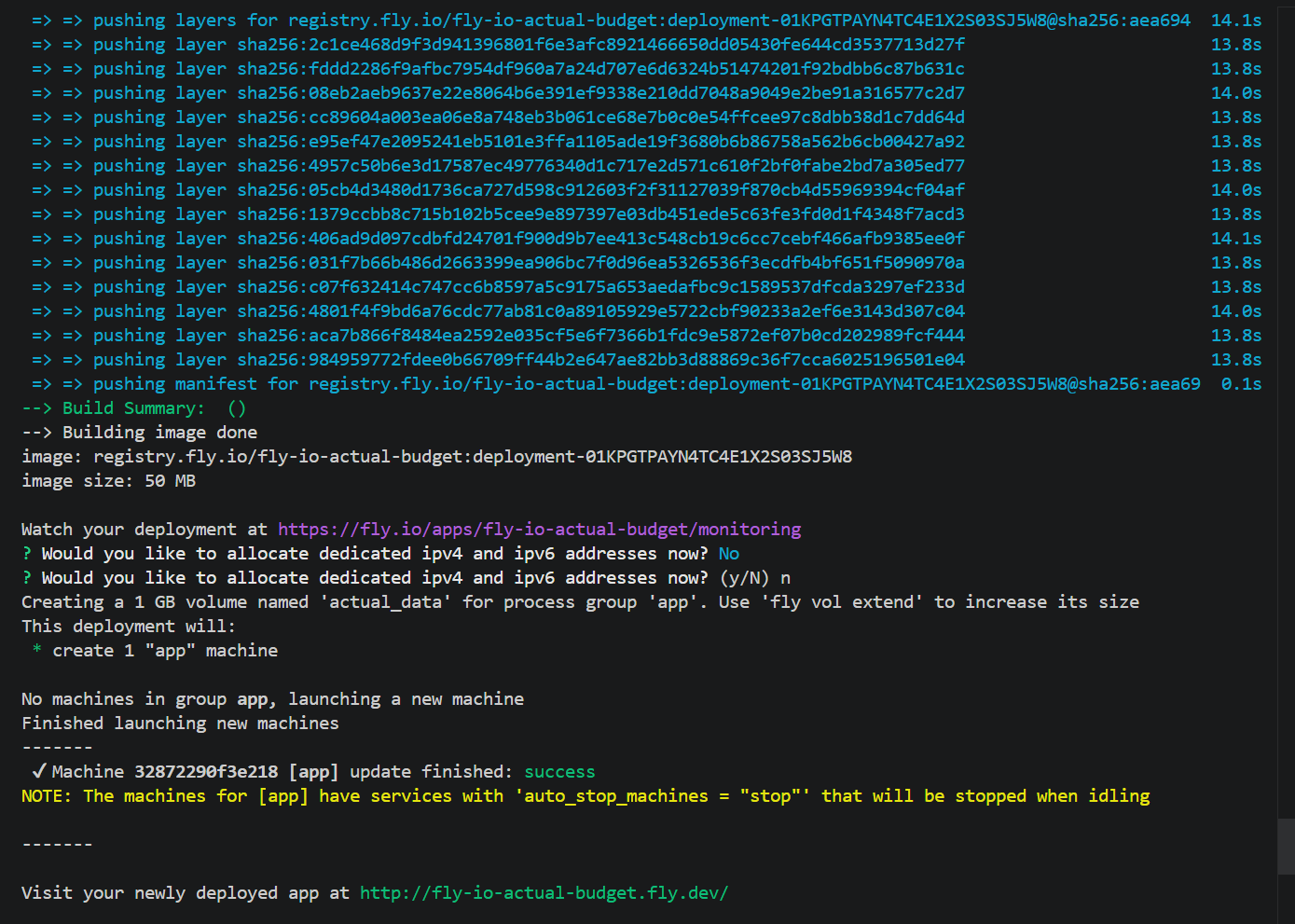
fly deployFly will prompt you to allocate a dedicated IP address. Deny it. We do not want this application exposed to the public internet.
Once deployed, allocate a private Flycast IPv6 address so the app can be reached internally over the proxy:
fly ips allocate-v6 --privateStep 6: Connecting via WireGuard
To access the private network, we need to create a WireGuard configuration.
Run the following command to generate the configuration file:
fly wireguard create personal bom actual-server actual-server.conf(Note: The format is fly wireguard create [org] [region] [name] [file]. Configure accordingly to your preferred region and names).
Install the WireGuard Client on your computer.
- Windows/macOS: Open the application, import the
actual-server.conffile, and activate the connection. Make sure no other VPNs (like Cloudflare WARP) are running. - Linux: Use the command
wg-quick up actual-server.confto connect, andwg-quick down actual-server.confto disconnect.
Accessing Actual Budget
Your server is configured to shut down after a few minutes of idling to save money. Each time you want to use the app, ensure your WireGuard connection is active.
Then, open your browser and navigate to your Flycast URL: http://<app-name>.flycast (in my case, http://fly-io-actual-budget.flycast).
This hits the lightweight Nginx proxy which will keep your machine awake. From there, click the button to launch Actual Budget securely at https://<app-name>.internal:5006.
Here’s a demo of it working on a desktop:
Mobile Access
To use Actual Budget on your phone, transfer the actual-server.conf file
to your device and use the WireGuard mobile app to connect. You can then use
Chrome or Safari to visit your Flycast URL just like on desktop.
Here’s a demo of the mobile experience:
That’s a wrap for this post. I hope you found it useful.